
How Spazio works
Every task,
one step at a time.
Features described: Android app 0.2.4. Screens use demo data.
This guide takes you through the Android app: from adding listings to viewings, ratings and choosing together. Pick a task from the contents or follow the chapters in order.
Sign in with Google
Open the Android app and tap “Continue with Google”. Choose your account: you return to Spazio automatically when sign-in finishes. There is no separate confirmation to link your phone.
The screens below show the Android app. If you prefer a browser, open the web version with the same account.
01 Find your way around
Four places to get started.
The bottom bar opens “Properties”, “Visits”, “Compare” and “Add”. The search name at the top shows where you are working: tap it to switch searches. The three-dot menu opens settings; the account icon lets you change language or sign out.
Find a property in the list
In “Properties”, tap the search icon and search by name, area or agency. Open “Filters and sorting” to show favourites, viewed properties or a particular status, and sort by cost, floor area or original order. If a property disappears, check the active filters first.
Use the map
Tap the map icon to see properties with available coordinates. Tap a marker to open the details. A property without a location remains in the list: missing from the map does not mean it has been deleted.
Property list
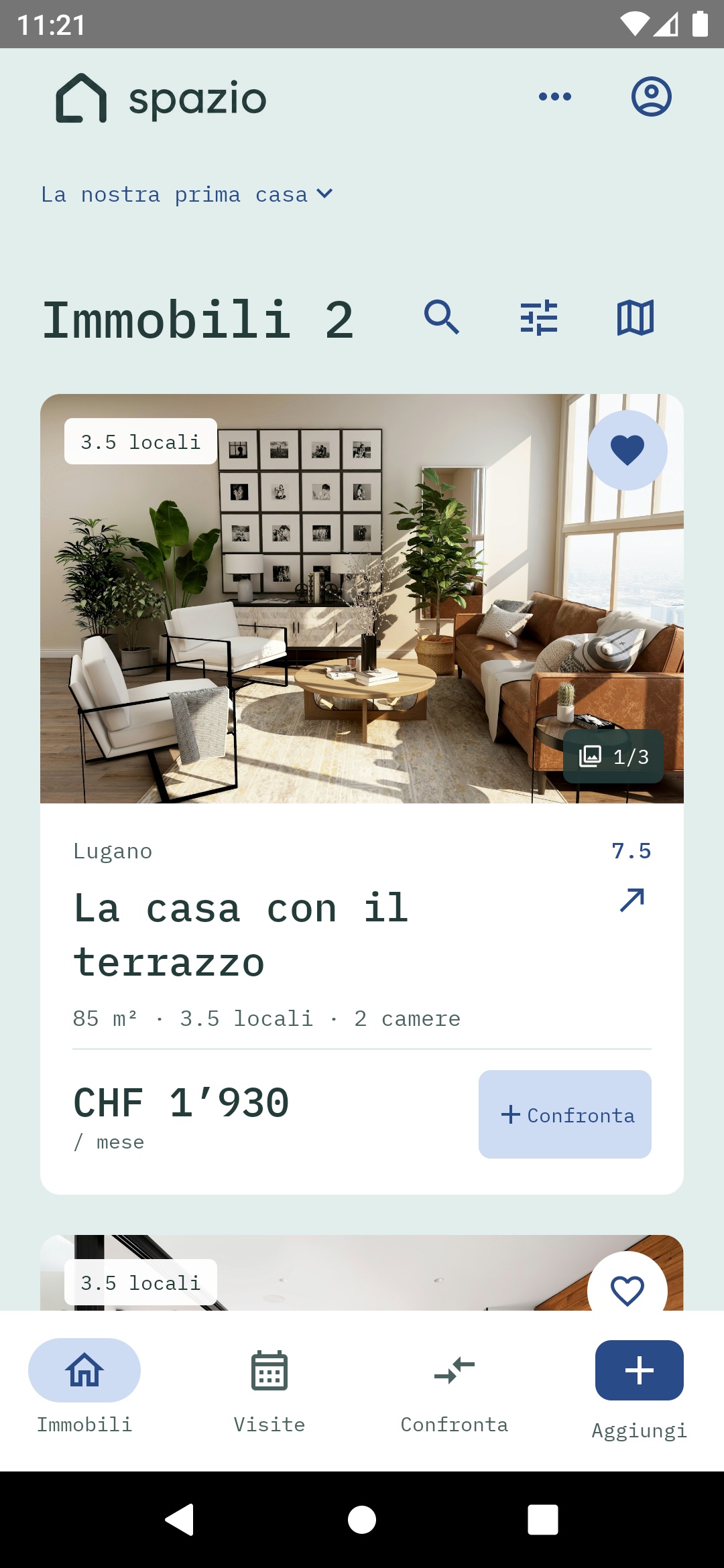
Spazio Android app · native screen with demo data · interface in Italian
Search for a property
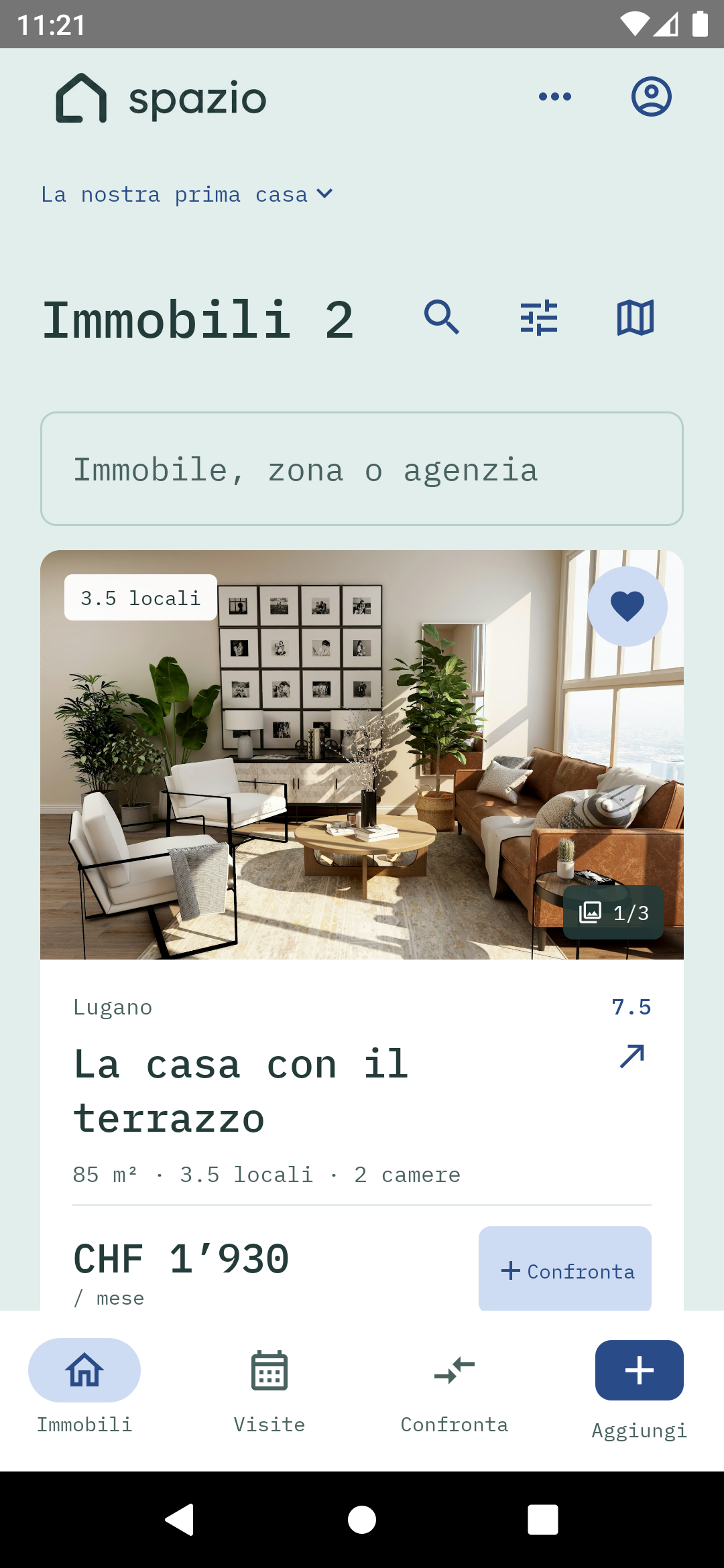
Spazio Android app · native screen with demo data · interface in Italian
Filters and sorting
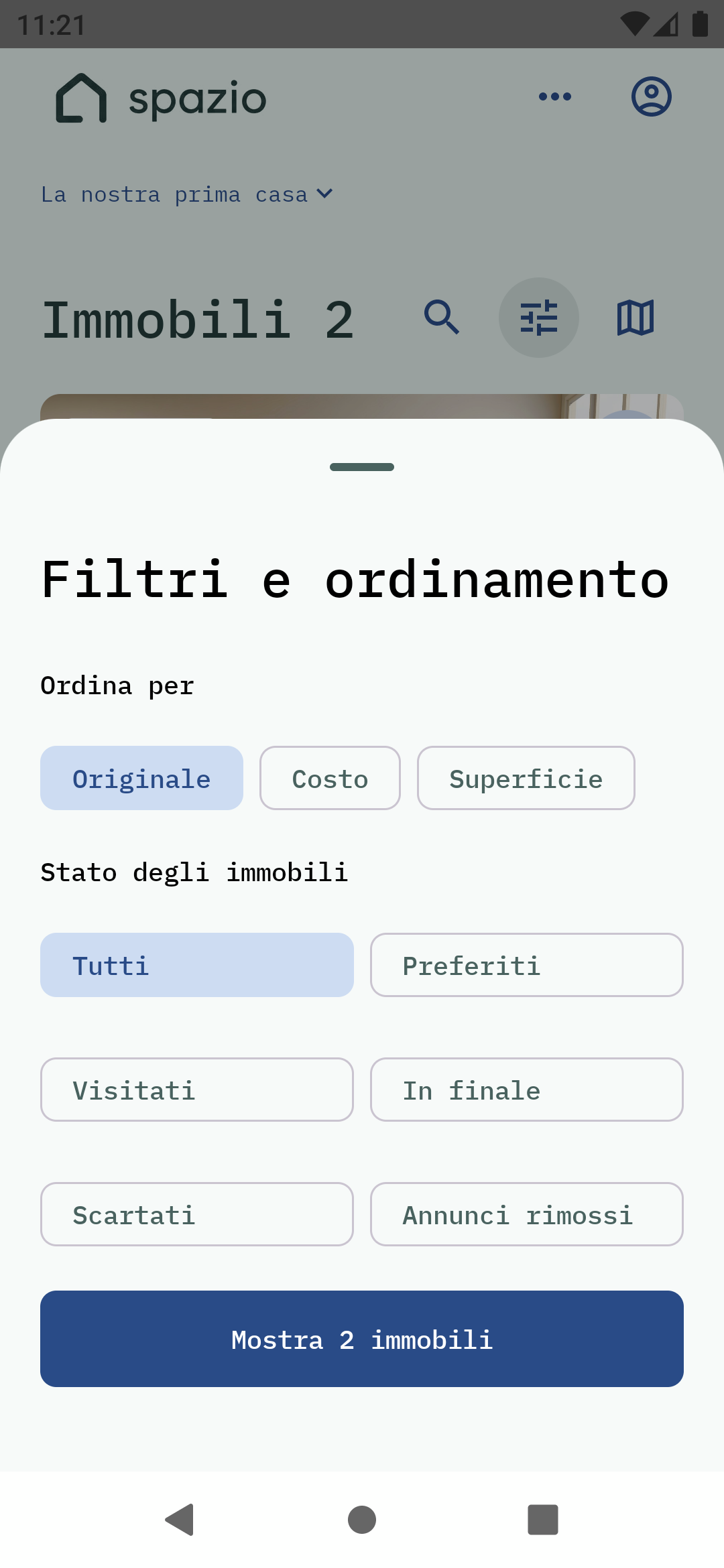
Spazio Android app · native screen with demo data · interface in Italian
02 Create a search
One project, one search.
In the app, tap the search name at the top, or open “Search settings” and “Searches and invitations”. Choose “Create a new search”, fill in “Search name” and tap “Create search”.
Choose a recognisable name, such as “Our next office”. Each search keeps its properties, participants, criteria and ratings separate. When you first sign in, if you have no searches or invitations, you can create one directly from “Your searches”.
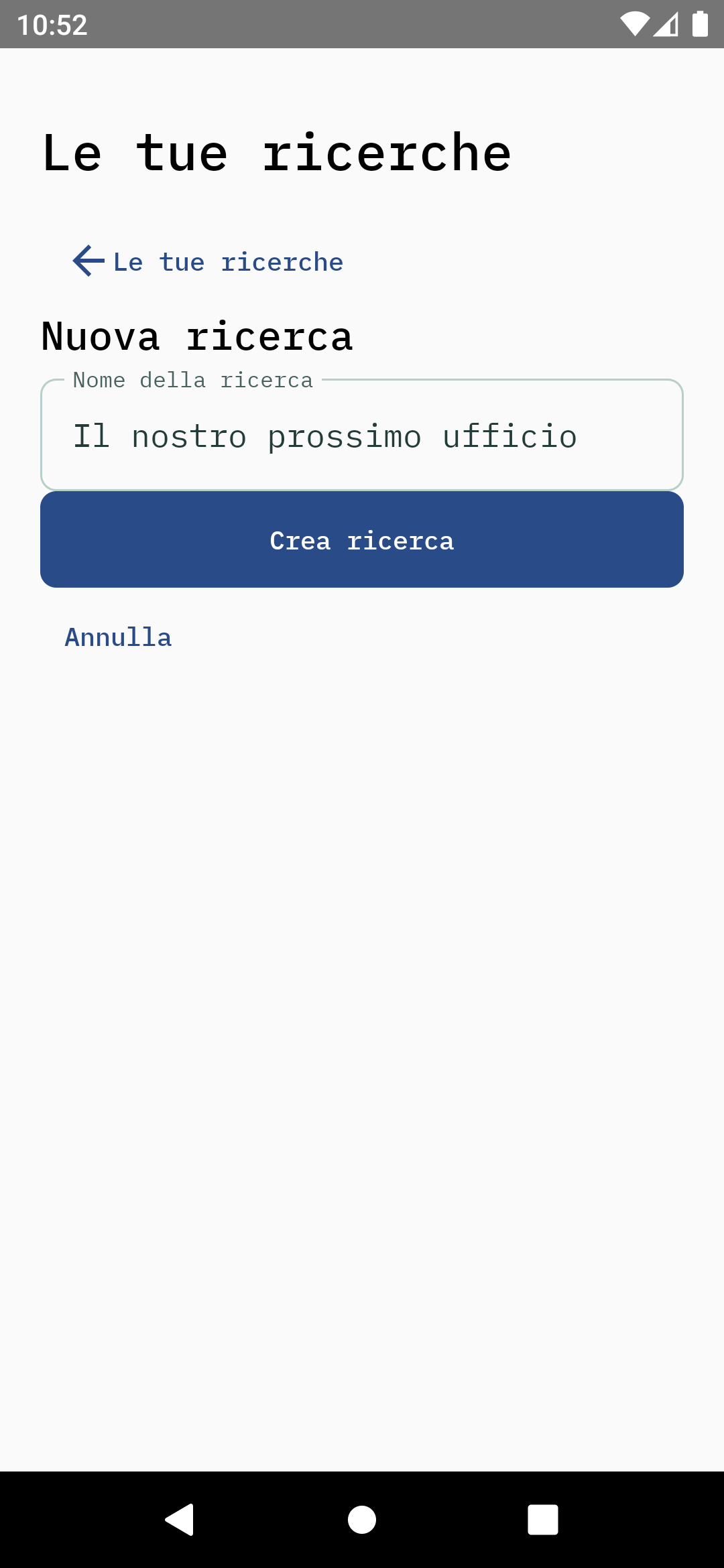
Spazio Android app · native screen with demo data · interface in Italian
03 Invite people
Choose who joins. And what they can do.
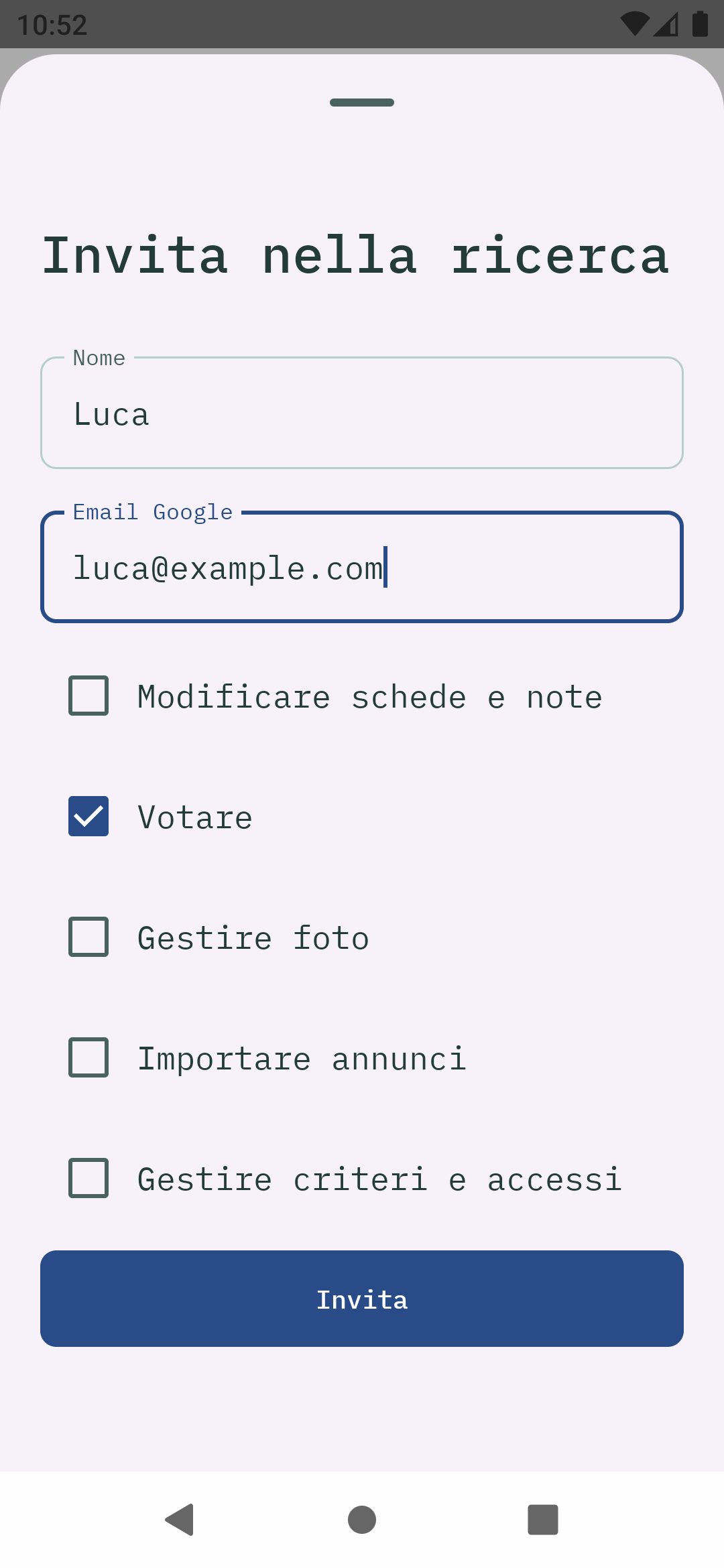
As the owner, open “Search settings”, then “People and access” and “Invite someone”. Fill in “Name” and “Google email”, choose permissions and tap “Invite”. In the example, Luca can rate properties in the search.
Without additional permissions, the person can read the search. You can allow them to rate, add listings, edit details, manage photos or criteria. Permissions can be changed later. Only the owner can invite people or revoke access.
Spazio Android app · native screen with demo data · interface in Italian
04 Accept the invitation
The same search. Your own account.
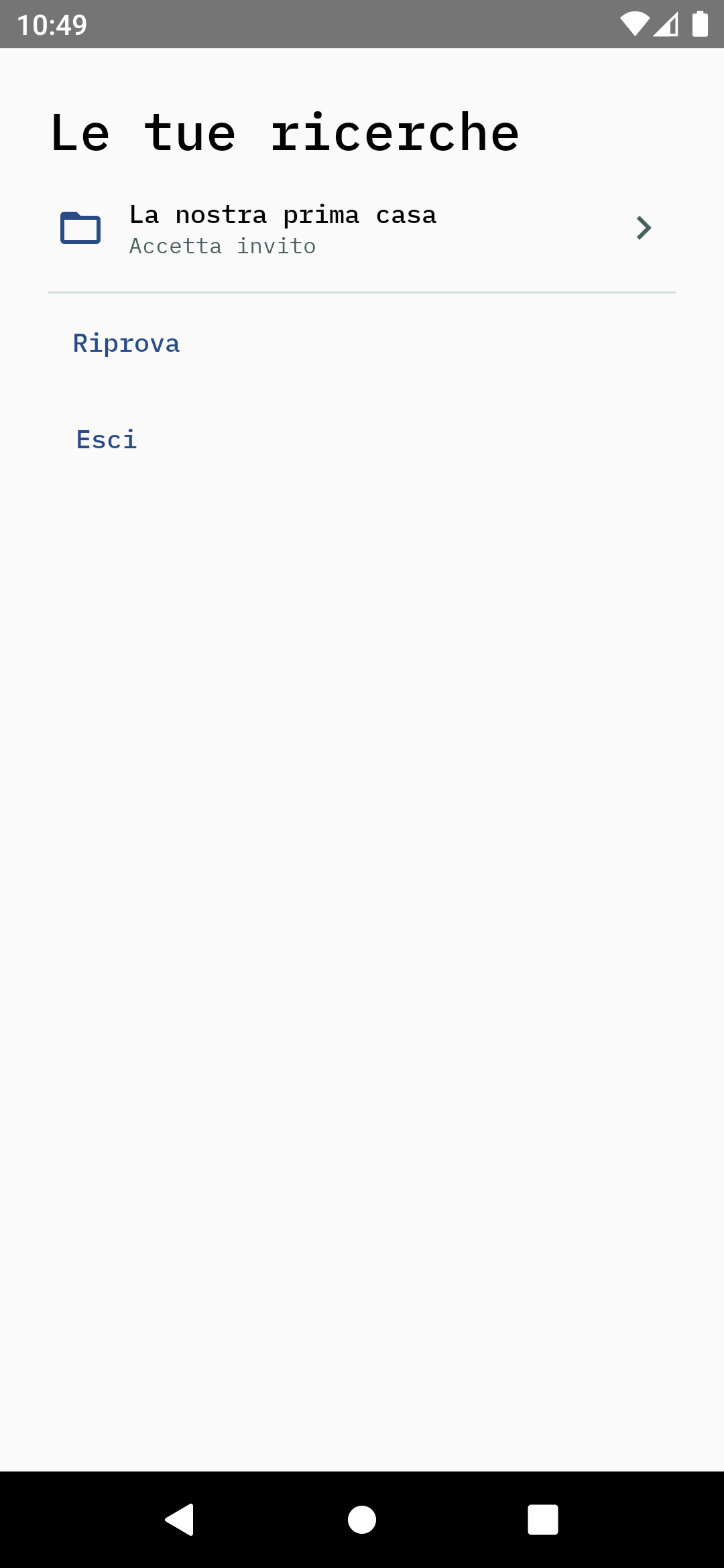
The invited person opens the app and signs in with the Google account matching the invitation email. In “Your searches”, they find the shared search and tap “Accept invitation”. If they already have a search open, they go to “Searches and invitations” and tap “Open search” on the invited search; switching also accepts the invitation.
They then join the existing search, without making a copy. If the invitation is missing, check the email address, the Google account used and whether access has been revoked.
Spazio Android app · native screen with demo data · interface in Italian
05 Add a listing
From a link to property details, with progress along the way.
Add the right link
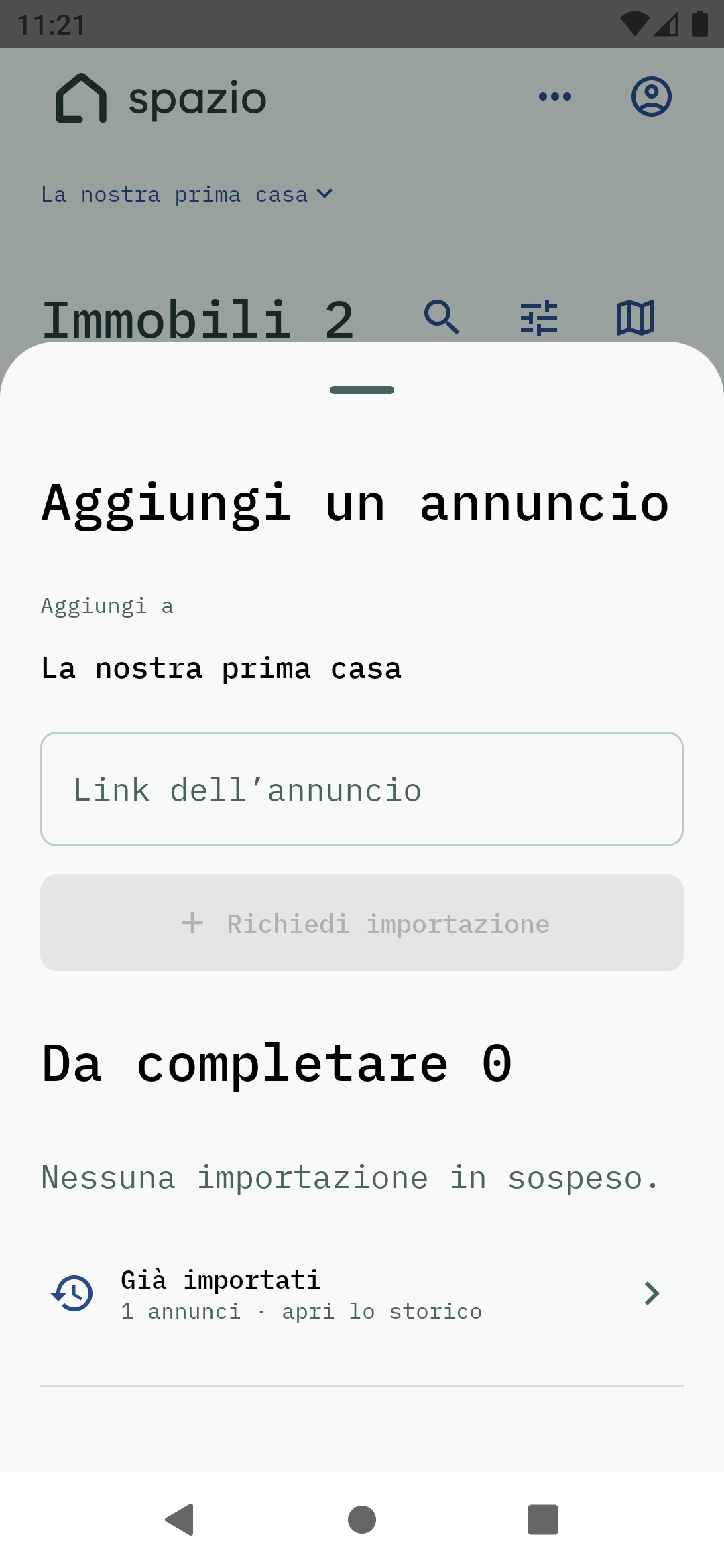
Open “Add”, check the search name and paste the link to the individual listing page. Tap “Request import”. You can also share a link from your phone’s browser to Spazio. A search page with many results does not identify one property.
Read the request result
A pending or processing request is not yet a ready property record. If it completes while you are in “Add”, Spazio opens the property details. If you are elsewhere in the app, “Listing ready” appears with “Open”. You can also find it in the list or check “Already imported” in settings.
If a request needs attention
Read the message under the request and use “Retry” after checking your connection and link. An expired listing, a site blocking access or incomplete data may prevent acquisition. Do not treat the listing as imported until its property record appears.
How acquisition continues
Version 0.2.4 reads listings with the integrated local browser, without opening a page in front of you. You can continue navigating within Spazio while acquisition runs. The server always records the request and checks the catalogue first: if the data is already available, it does not need to fetch it again from the property site.
Delete an unfinished request
If you own the search or have import permission, you can delete a pending, processing or incomplete request. Confirm only if you no longer want to acquire it: removal applies to all participants in the search. Already imported properties and the source catalogue are unchanged.
Import request
Spazio Android app · native screen with demo data · interface in Italian
06 Read and complete property details
Useful details, with costs to check.
Open property details
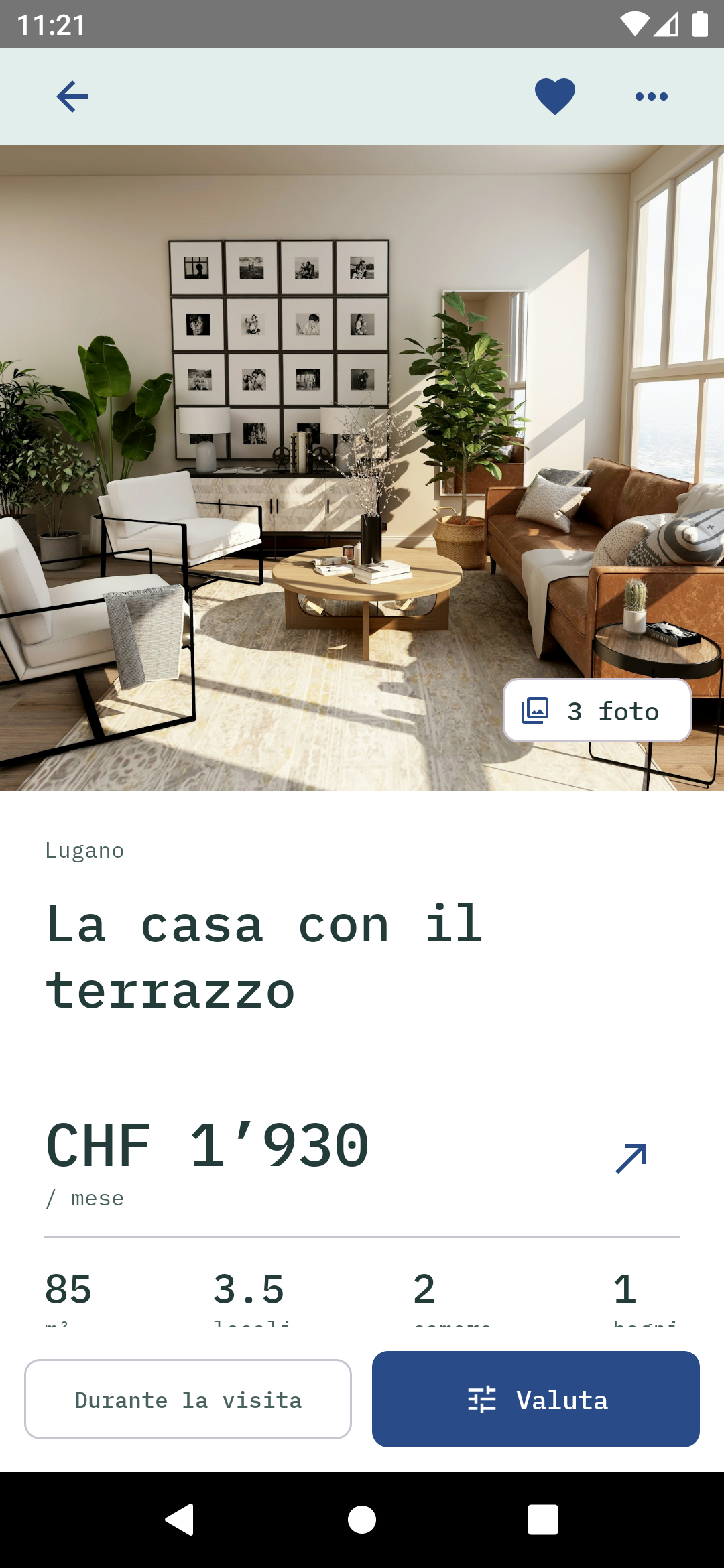
Tap the photo or title in the list. The details page brings together images, area, description, features, monthly cost and links to costs, appointments, notes and personal photos. In “Space and features”, you can correct details if you have editing permission.
Fill in costs and terms
Open “Costs and terms” for rent, expenses, parking and other monthly items. Upfront costs include the deposit, fees and advance rent. Leave unknown values blank: use zero only when an item is genuinely included or costs nothing. “Partial” means some information is missing from the total.
Decide what to keep under consideration
The property menu lets you change its status, add it to the comparison, open the source, share its link or open its location in maps. “Delete listing” is different from discarding or unfavouriting it: it removes the property record from the search and asks for confirmation.
Office rents quoted per square metre
For rent quoted per square metre per year, the app explains the monthly calculation when area and price are available. For example: CHF 450/m²/year × 153 m² ÷ 12 = CHF 5,737.50 per month, excluding expenses. The note retains the source value: always check area, period and expenses before comparing totals.
Property details
Spazio Android app · native screen with demo data · interface in Italian
07 View photos and floor plans
Look at the details. Keep your own photos separate.
Open and zoom into the gallery
Tap the main photo or image counter. Swipe through photos and pinch to zoom; when zoomed in, move the image to inspect it. Return to the full view before switching to the next photo. The counter shows your position in the gallery.
Find available floor plans
If the source provides a floor plan and acquisition retrieves it, it appears among the property images. Some PDF attachments are converted into images. If it is missing, open the original listing: not every site or listing provides a floor plan that can be retrieved.
Add your own photo
Open “Your photos” or the “Photos” tab during a viewing. “Choose” opens your phone’s gallery; “Take photo” opens the camera. Personal photos are separate from listing images and visible only to their author. You can hide, restore or delete them with confirmation.
Wait for a photo to load or retry it
The loading indicator means the image is not ready yet. If an error appears, check your connection and use “Retry” when available. A photo that has not loaded does not mean the listing has no photo.
Photo gallery
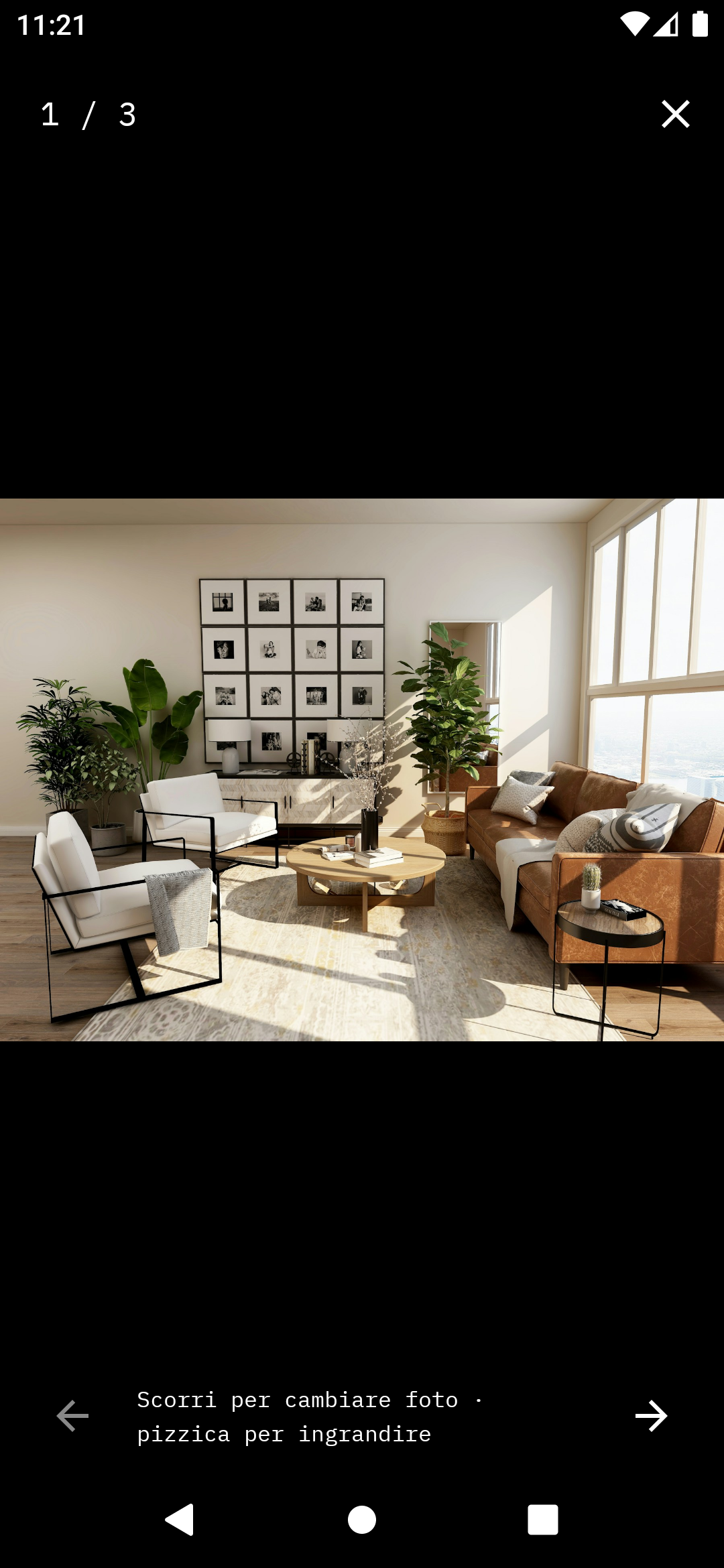
Spazio Android app · native screen with demo data · interface in Italian
Example floor plan
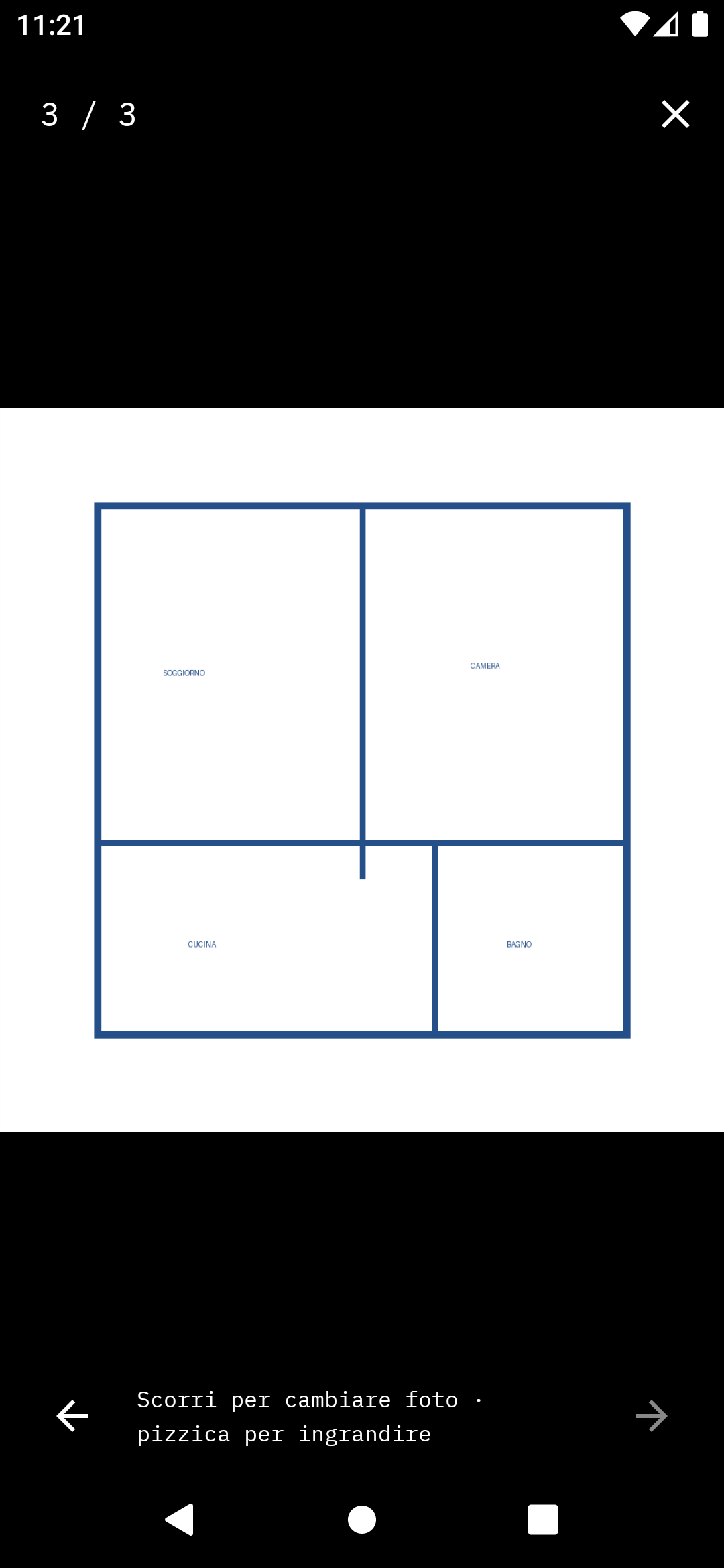
Spazio Android app · native screen with demo data · interface in Italian
08 Organise notes and viewings
From a question to a viewing.
Write down what you want to remember
Open “Notes and questions” in the property details or “Notes” in a viewing. Use the notebook for questions, doubts and impressions, keeping before and after the viewing distinct. Personal notes are yours. “Agreements and terms” is part of the shared property record, so do not use it for private notes.
Set a date and time
In “Appointment and contacts”, tap “Schedule a viewing” and choose a date and time. Under “Visits”, properties are grouped as upcoming, to schedule or completed. After a viewing, mark it as completed and add your impressions and post-viewing ratings.
Add it to your phone calendar
“Add to calendar” opens your phone’s event creation screen, where you can confirm saving it. “Open phone” uses the number in the property record. Spazio does not book a viewing with the agency; arrange it directly with the contact person.
Personal notes
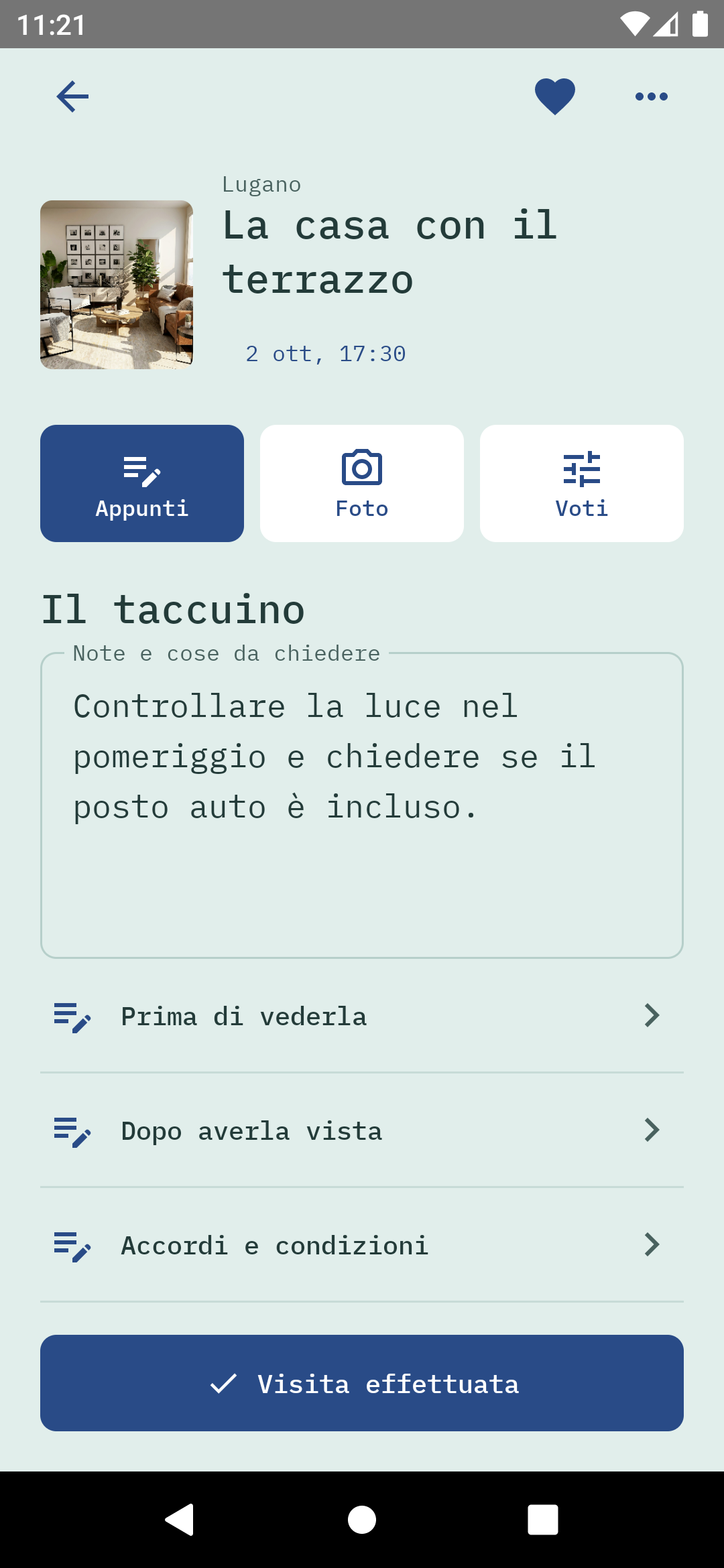
Spazio Android app · native screen with demo data · interface in Italian
Viewing schedule
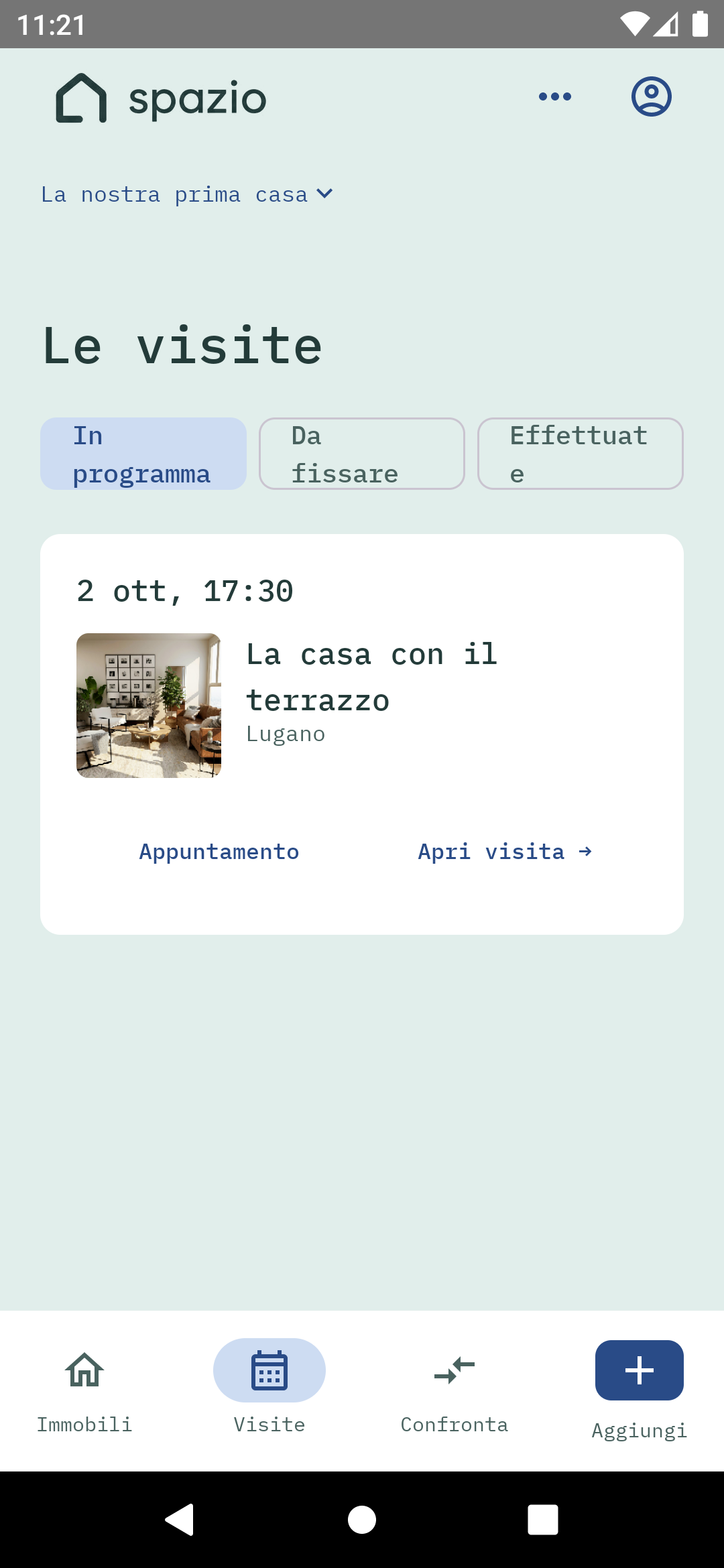
Spazio Android app · native screen with demo data · interface in Italian
09 Choose your criteria
What matters in this search?
Open “Search settings” and “Criteria and weights”. For each criterion, you can change its name, description and weight, activate it or move it in the list. When you are done, scroll to “Save criteria” and tap it.
Criteria belong to the search and can be changed by anyone with the relevant permission. Everyone rates under their own identity; ratings before and after a viewing remain separate.
Edit the criteria
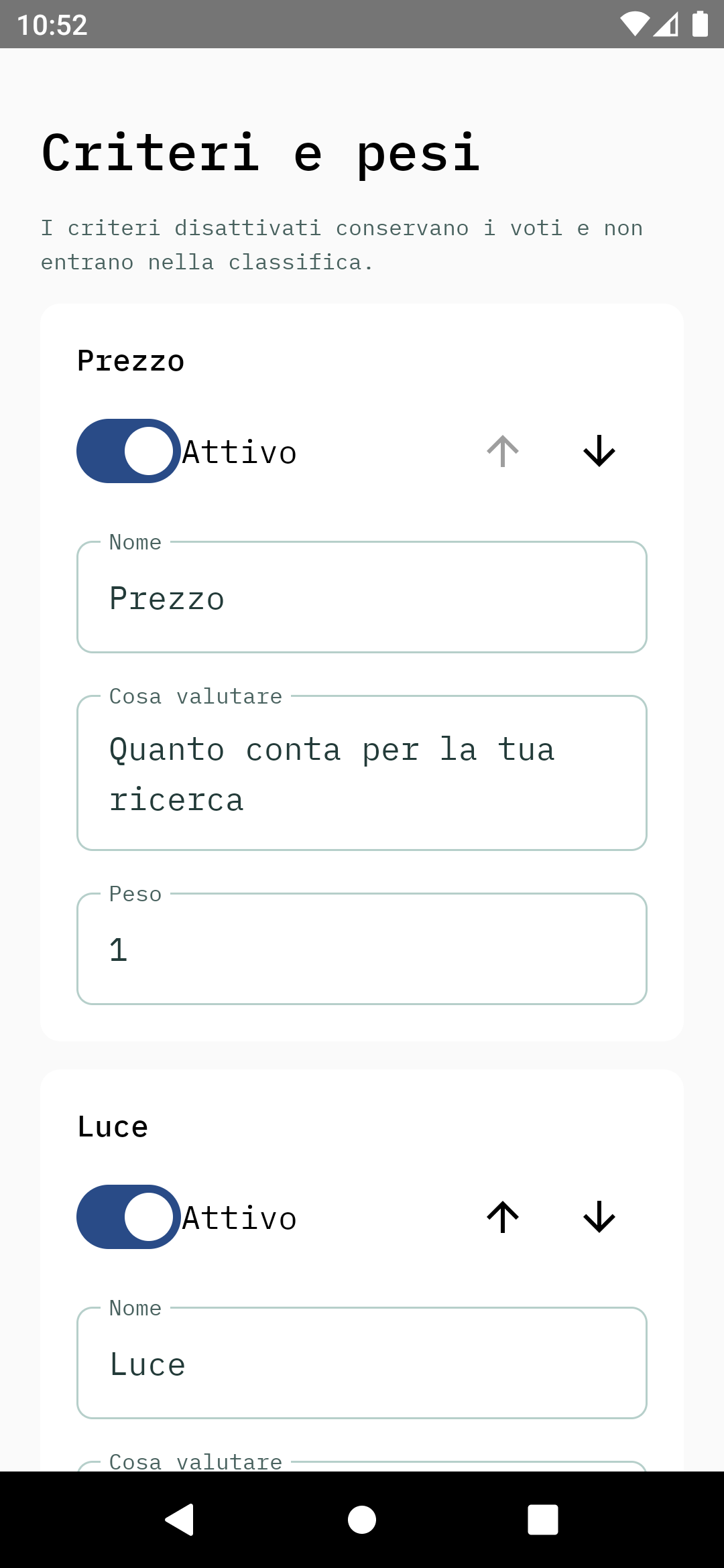
Spazio Android app · native screen with demo data · interface in Italian
Scroll and save
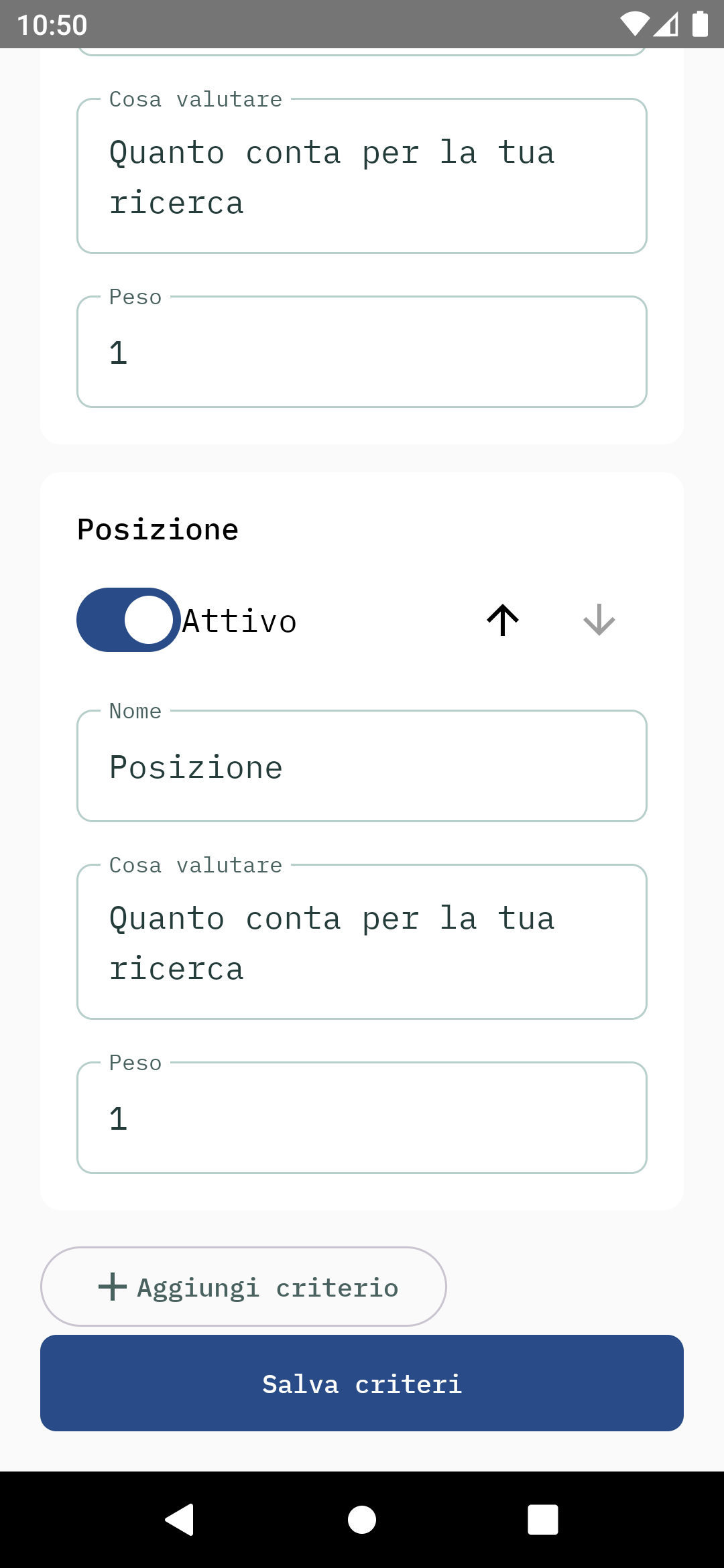
Spazio Android app · native screen with demo data · interface in Italian
10 Rate and compare
Give your own rating. Compare the differences.
Rate before and after a viewing
Tap “Rate” in the property details to open ratings. Choose “Before viewing” or “After viewing”, then give each criterion a score from 1 to 10. “Next” moves to the following criterion and “View all” opens the list. If you cannot rate something, leave it “Not rated”; it is not counted as zero.
Read the ranking
Tap “Compare” in the bottom bar, then choose “Ranking”. The ranking uses the search’s criteria and weights. You can choose before or after the viewing, everyone’s ratings or one person’s, and show only complete ratings. You can view other people’s ratings, but only edit your own.
Put two or three properties side by side
Select “Compare” on property cards and open “Side by side”. “Change properties” edits the selection, up to three. Switch between costs, space, terms and ratings, or enable “Differences only” in options. Different currencies are not converted automatically.
Take the comparison outside the app
Tap “PDF / Share” in the comparison to generate a PDF and open Android’s share menu. The document is a snapshot of the comparison at that time; it does not update when search data changes.
Ratings before viewing
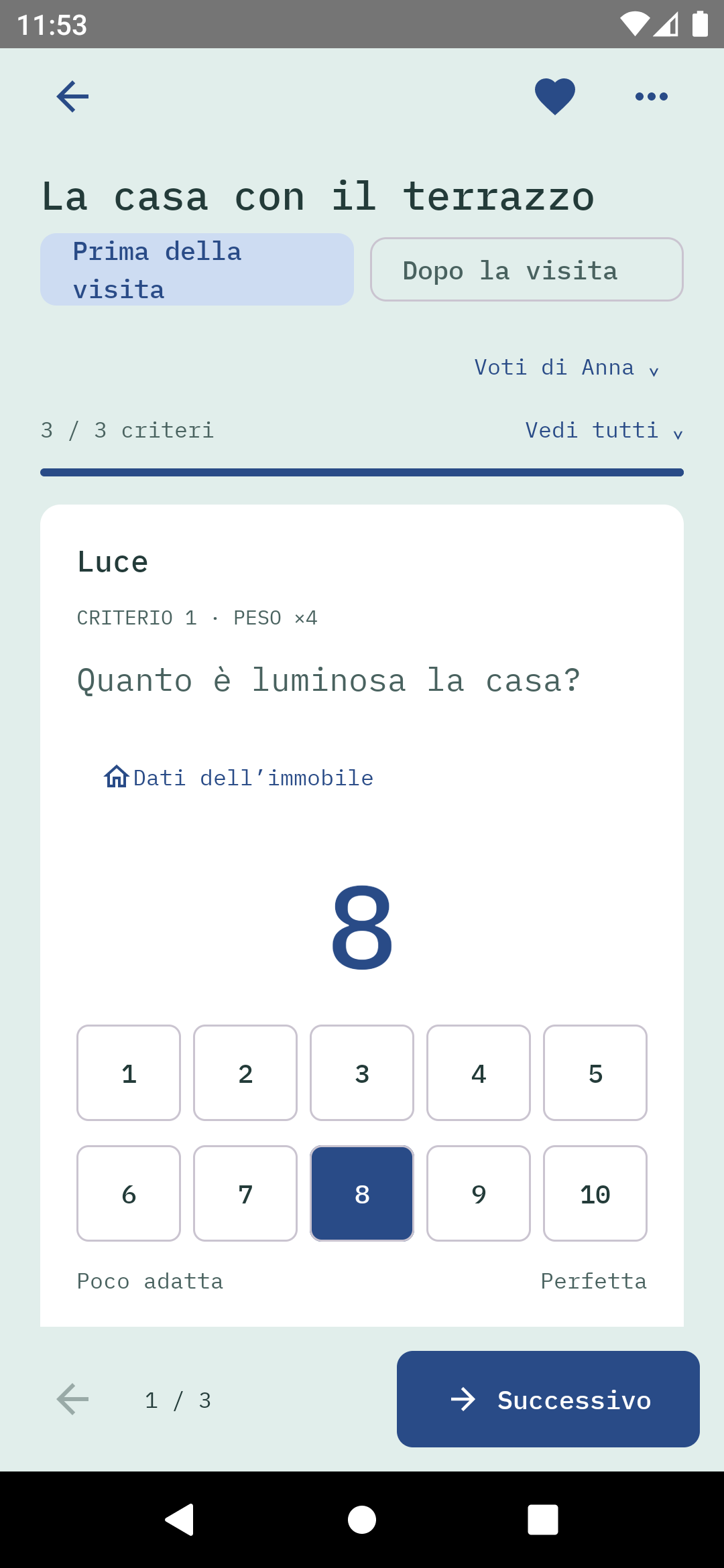
Spazio Android app · native screen with demo data · interface in Italian
Ratings after viewing
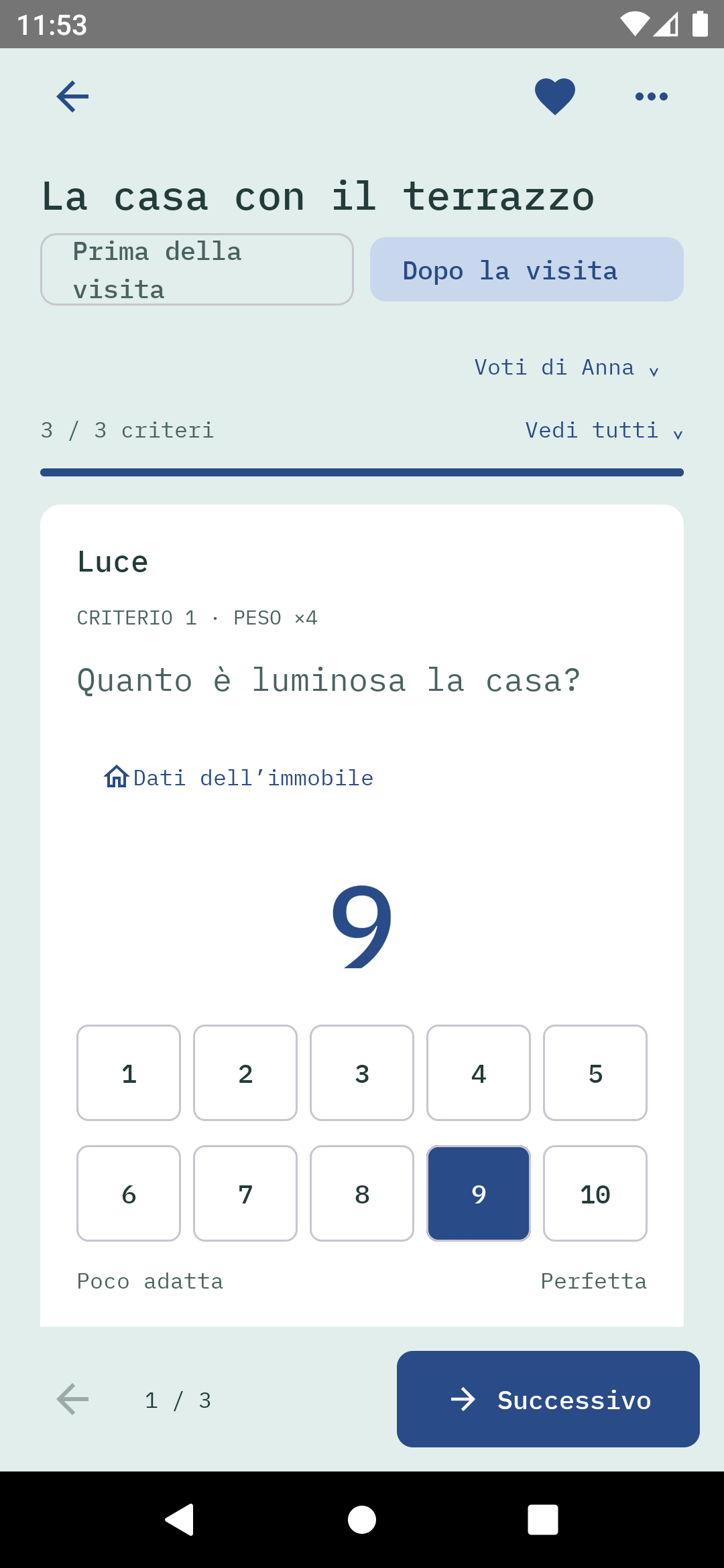
Spazio Android app · native screen with demo data · interface in Italian
Side-by-side comparison
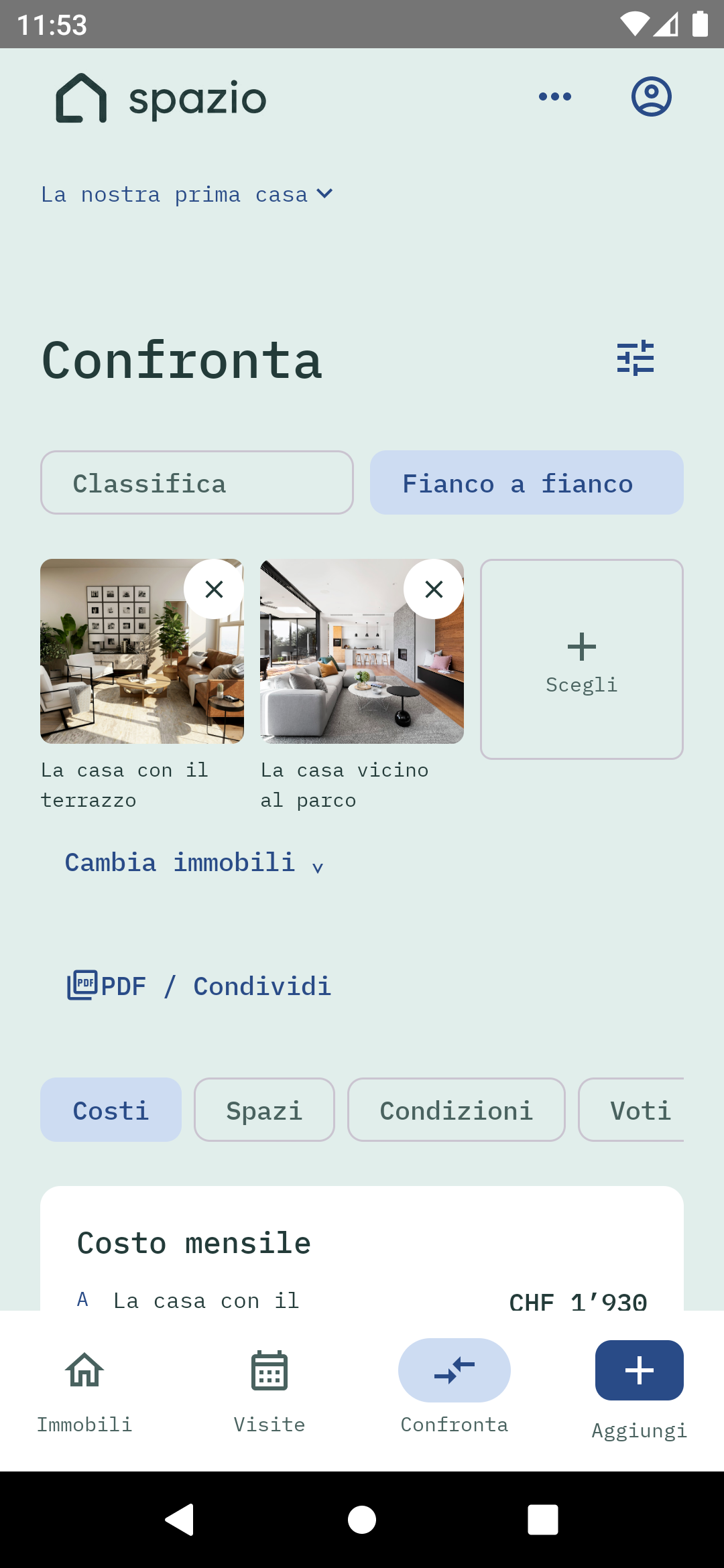
Spazio Android app · native screen with demo data · interface in Italian
Cost comparison
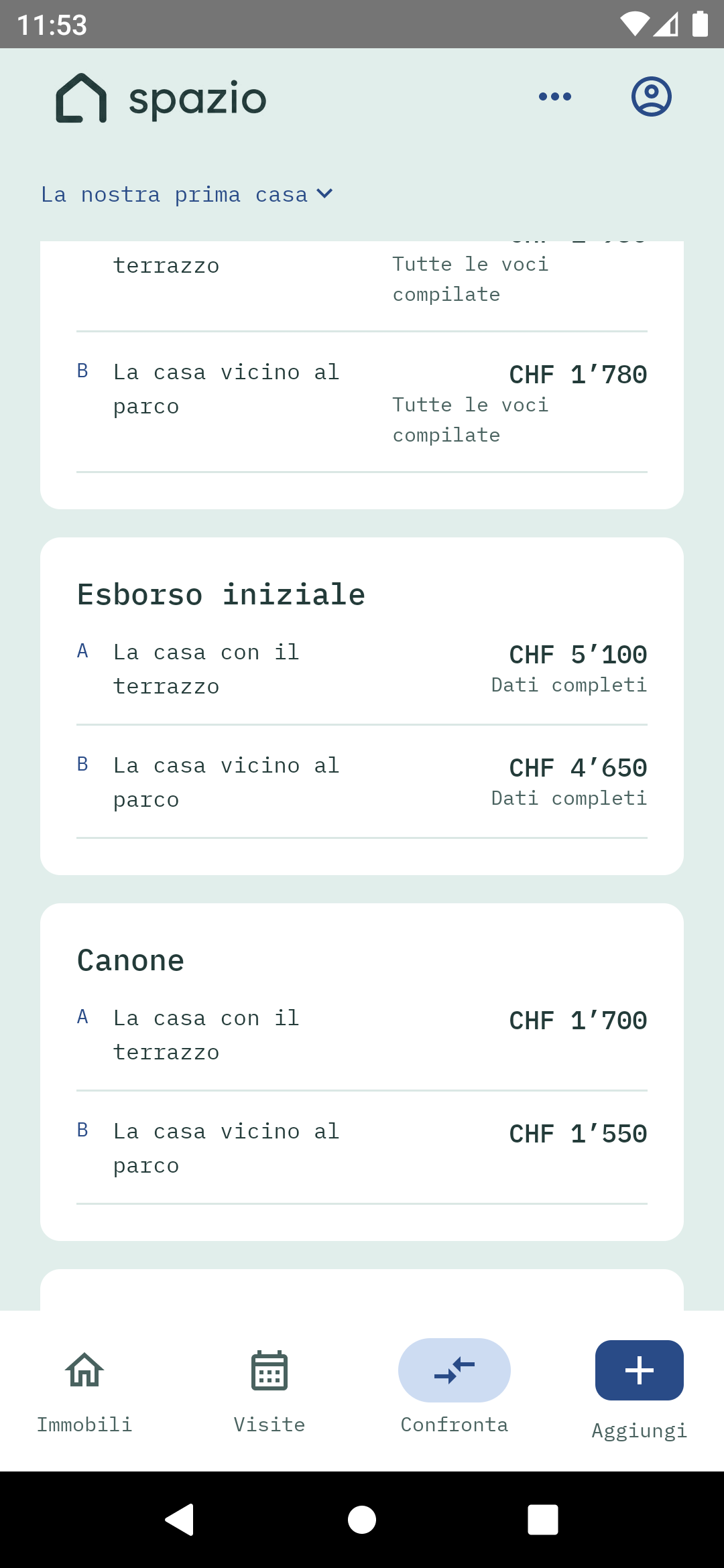
Spazio Android app · native screen with demo data · interface in Italian
11 Manage settings and sharing
Access, copies and sharing: choose the right action.
Language and contacts
Use the account icon to change language or sign out. In “Search settings”, “Agencies and contacts” groups properties by agency and shows available contact details. Owners can rename a search in “Searches and invitations”.
Share a link or export a copy
“Share” in a property menu sends the source link through your phone’s apps. It does not grant access to the search. “Export copy” in settings creates a file with the search data and your personal photos; it does not transfer ownership or delete the search.
Manage sharing for property analysis
“Privacy and sharing” concerns the sharing described in the privacy notice, not invitations to participants. Search settings and individual choices are separate. To re-enable individual sharing, the app opens the web privacy page so you can read the terms and choose.
Only the owner can change sharing for the search. Individual choices remain separate and are not activated by inviting someone.
Settings menu
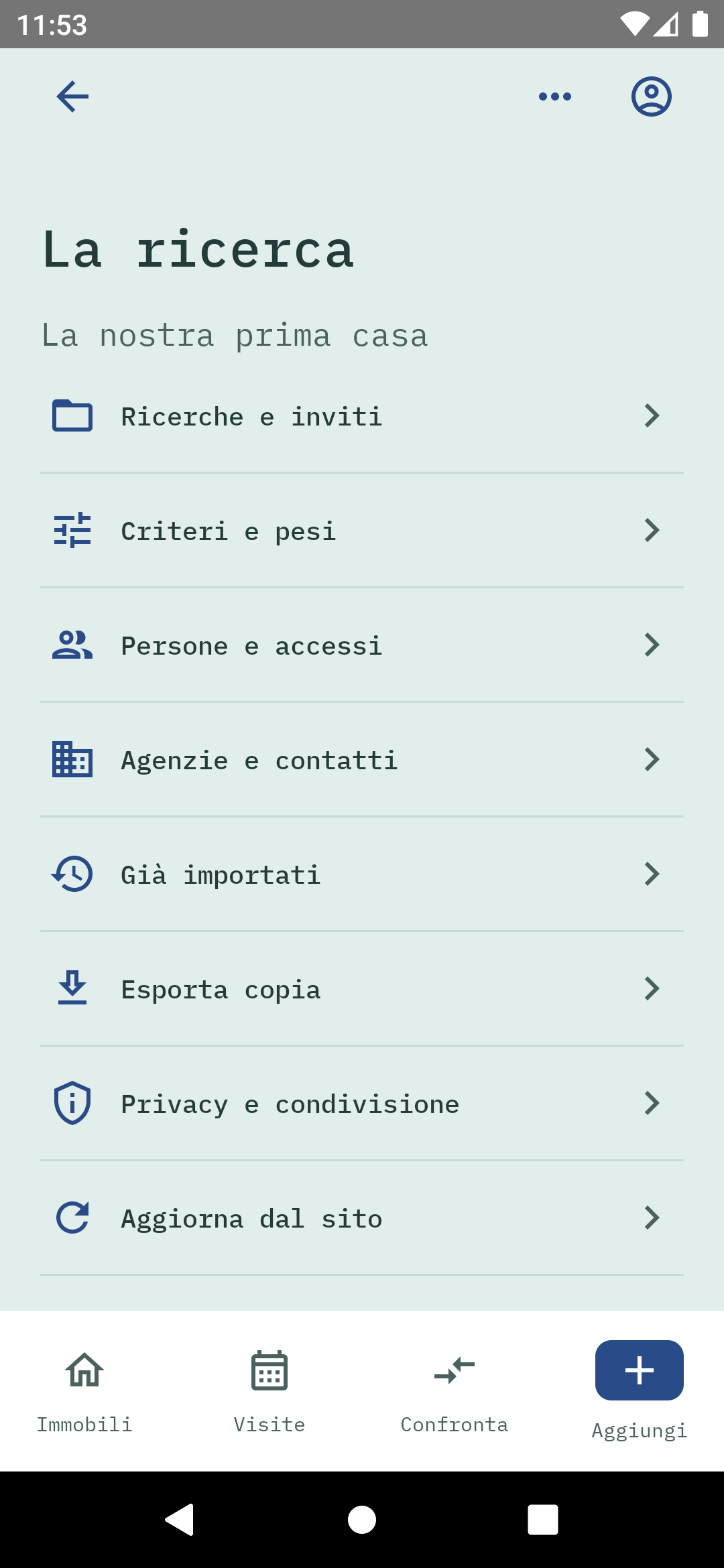
Spazio Android app · native screen with demo data · interface in Italian
Language and account
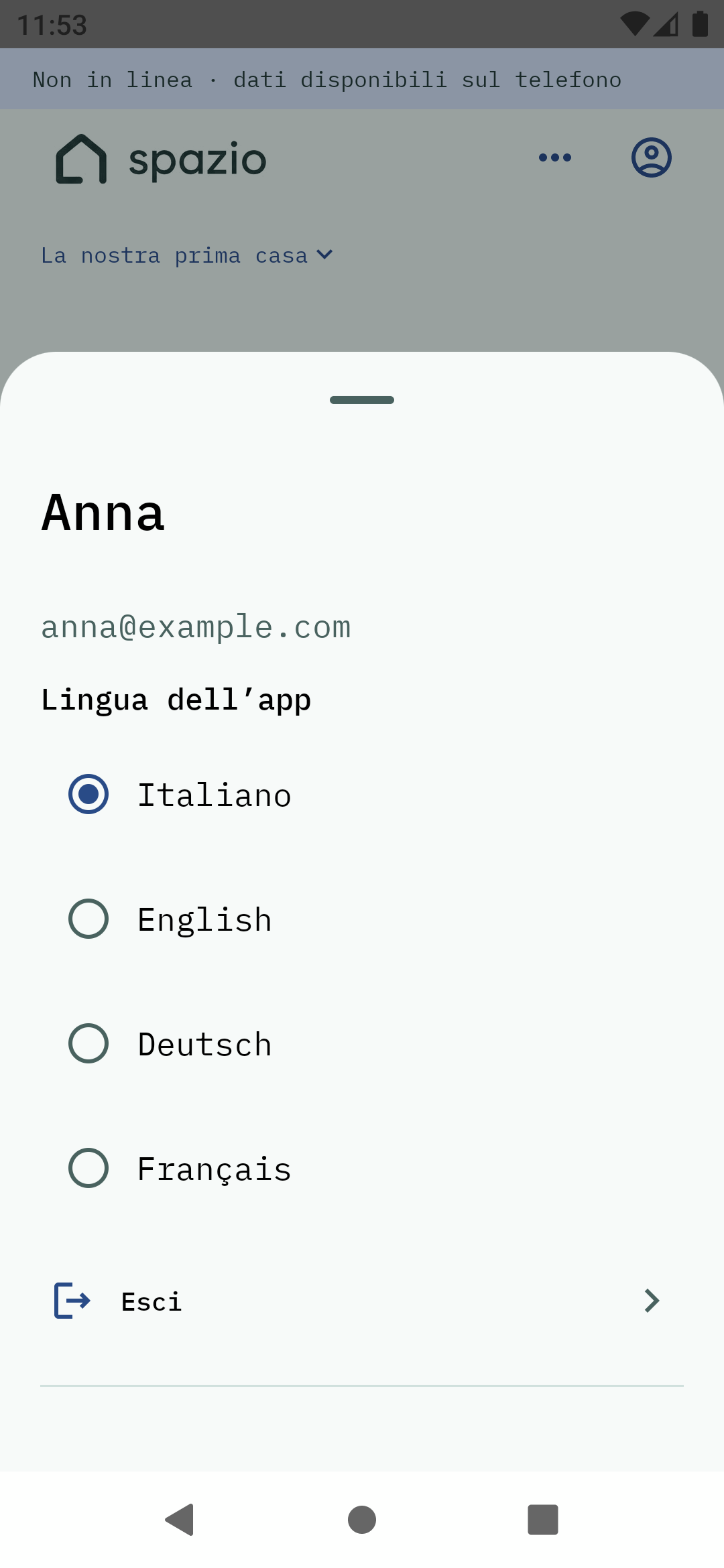
Spazio Android app · native screen with demo data · interface in Italian
12 Use data offline and resolve errors
Knowing what is saved matters.
Prepare for offline reading
Open the search and photos while connected. The app keeps previously loaded data and images in a private encrypted cache on your phone. Offline, you can read what is locally available; a search or photo never loaded may not be accessible.
Check synchronisation
Changes must be confirmed by the server. “Saving…”, “Offline” or an error does not mean an edit has reached other devices. Reconnect and use “Retry” or “Refresh from website”; wait for confirmation before signing out, switching searches or closing the app.
If the same fields changed elsewhere
When Spazio reports a conflict, it does not silently overwrite newer data. Read the message before using “Reload”: confirming discards unsent edits and loads the latest values. Copy any unsaved note first if you want to keep it.
Offline reading
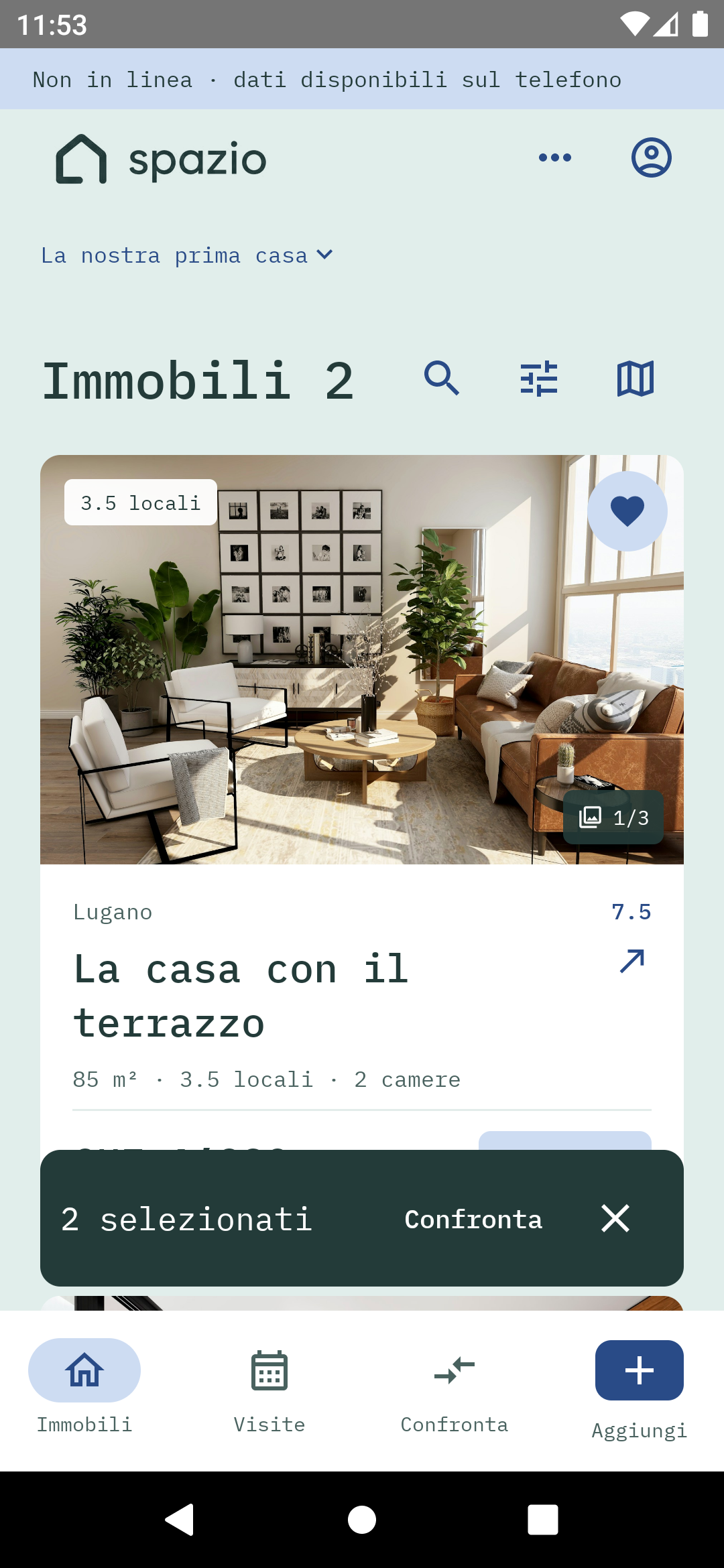
Spazio Android app · native screen with demo data · interface in Italian
Useful answers before you begin.
Practical questions.
Can’t find the answer? Email us at info@tsubasa.ch.
Can I use Spazio in a browser without downloading the app?
Yes. For now, you can use Spazio in your browser on a phone, tablet or computer. Android and iOS apps are planned; links will be published in the download section when they are available.
Do I need a Gmail address?
You need a Google account, which can also use a non-Gmail address. The invitation email must exactly match the account used to sign in.
How many searches can I create?
You can own up to 20 searches in Spazio. This includes any personal search created when you first sign in. Searches you join by invitation from others do not count towards this limit.
How many people can I invite?
The current version has no set numerical limit on invitees per search. Only the owner can add them and manage access. Each person must use their own Google account.
Does the invited person receive an email?
No, Spazio does not automatically email invitations. Once it is saved, share the app link. The person signs in with the invited Google account and accepts the search from their list.
I can’t see the invitation. What should I check?
Check that you signed in with the correct Google account. Ask the owner to check the email and invitation status in “People and access”. Then reopen “Your searches” or “Searches and invitations” in the app.
Can I invite someone just to view the search?
Yes. Leave all additional permissions off to give the person read-only access. In the Android app, enable “Rate” if you also want them to add ratings.
Who can see my notes and photos?
Listings and shared information belong to the search. Personal notes and personally uploaded photos are kept separate by author and are not visible to other participants. Ratings remain attributed to the person who gives them.
Can I change permissions or revoke access?
Yes. As the owner, change the permissions and select “Save permissions”, or choose “Revoke access”. Revoking access does not permanently delete the person and their ratings; removal is a separate action requiring confirmation.
Do I need to enter everything again on another device?
No. Sign in with the same Google account and open the same search. Saved data is available across devices; check that changes have been saved before switching devices.
Why is the monthly cost marked as partial?
One or more cost items are missing. The total only shows what is known: check “Costs and terms” and confirm amounts with the advertiser. An empty field is not zero.
Does sharing a link give someone access to my search?
No. The property’s Share action sends the original listing link. Collaborating in the search requires an invitation from its owner, the correct Google account and accepting the invitation.
Why does the ranking change after editing criteria?
The ranking uses active criteria, their weights and available ratings. Changing a weight or disabling a criterion can change the order without changing the recorded ratings. Missing ratings are not treated as zero.
Why is a photo unavailable offline?
Offline reading covers images already loaded on that phone. If a photo was never opened or had not finished loading, it may not be cached. Reconnect and open it before viewing it offline again.
Are deleting and discarding a property the same?
No. Discarding changes the property’s status, and you can find it again with filters. Deleting removes it and associated information from the search, requires confirmation and is not a way to hide it temporarily.
Now it’s time for your search.